


Before you use SanDisk RescuePRO data recovery software, two things are worth knowing. First, does SanDisk even own this recovery software or is it from another company? Second, RescuePRO comes in multiple versions, so which one do you have to use?
Don't worry. We will discuss everything clearly here, help you pick the right RescuePRO for your situation and show you how to use it on Windows and Mac. We will also look at more powerful alternatives like Eassiy Data Recovery, which handles SanDisk recovery with a high success rate.
What Is SanDisk RescuePRO Data Recovery Software
RescuePRO is a data recovery tool built specifically for SanDisk flash storage. If you have an SD card, a microSD card, CompactFlash (CF) storage, a CF Express card, or a USB flash drive from any SanDisk line like Extreme, Ultra, or Cruzer, RescuePRO is the tool you use whenever you lose files on them. RescuePRO also has support for older SanDisk media that is no longer manufactured, such as Memory Stick, SmartMedia, MMC, and similar.
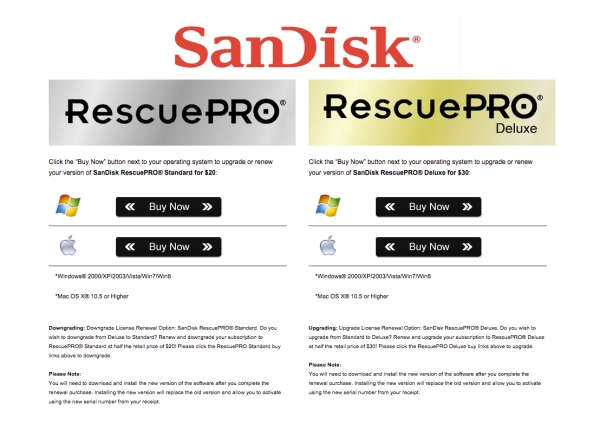
But keep one thing in mind. RescuePRO is not one program. It ships in several versions and the one you need depends on what you are recovering and what you are recovering it from. For memory cards and USB drives, two of them matter, which are RescuePRO Standard and RescuePRO Deluxe.
Beyond these two versions, there is a third worth knowing: RescuePRO Deluxe SSD. It is sold separately and built for SanDisk external SSD lines, like the Extreme Portable SSD, the Extreme PRO Portable SSD, and the PRO-G40. There is also a Deluxe Commercial tier. It is priced well above the rest of the versions, but it is aimed at businesses running recoveries for many users. Besides, LC sells separate products for HDD recovery, like FILERECOVERY and PHOTORECOVERY.
Is RescuePRO SanDisk's Own Data Recovery Software?

No. RescuePRO is not SanDisk's own data recovery software.
RescuePRO is actually built by LC Technology International. It is a data recovery company based in Clearwater, Florida. However, it carries the SanDisk brand name and sells its product under the “SanDisk” label because of a long-running partnership.
This trips up a lot of people because when you get Rescue Pro or a data recovery plan with your SanDisk Pro device, you are actually getting the Rescue Pro subscription. Your license, renewals, and support will run through LC Technology.
How Much Does SanDisk RescuePRO Data Recovery Software Cost?
RescuePRO comes in four editions and the one you need sets the price. Here is what each costs and what it is built to handle.
And whichever edition you buy, the license runs for one year. After that, the software drops back to trial mode. It will still scan and preview, but it will not restore anything until you renew.
Note: You will find gray-market listings on eBay and Reddit selling subscription numbers for as little as US$5 to US$10. Many users, including our own testing team, were given fake license numbers. So avoid them. They are usually fake keys and you can lose money.
Do SanDisk Storage Devices Come with a Free RescuePRO License?
Yes, but only on certain cards. And even then, it is only available for a limited time. The bundle shows up on the higher-end lines:
- Extreme PRO CFexpress Type B card
- Extreme PRO UHS-II V90 SDXC card
- Extreme SDHC/SDXC card
- Extreme microSD card


The offer also varies by product and by region, so check the packaging before you buy a card for the software. Lower-tier lines like Ultra and Cruzer stopped shipping it years ago.
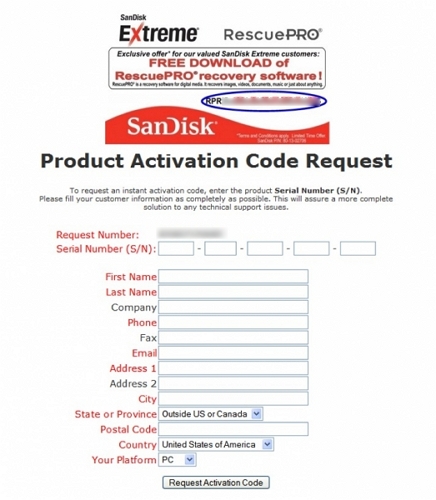
Redeeming it is simple enough. The activation key is printed on the product packaging.
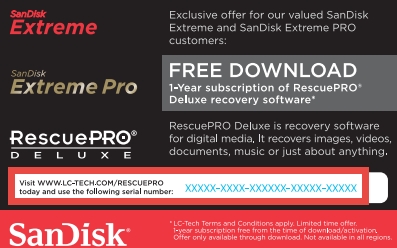
So you can download RescuePRO Deluxe from LC Technology's site, enter the key, and unlock the full version.
How to Use SanDisk RescuePRO Data Recovery Software
Once you have picked your edition or redeemed a bundled license, RescuePRO is fairly easy to run. The steps barely change between Windows and Mac.
Before you start: Do not copy any new files onto it or install RescuePRO onto it, as anything written to that card can overwrite the files you are trying to recover. Once that happens, no software can bring them back.
Step 1. Download SanDisk RescuePRO Data Recovery Software on Windows/Mac
Go to LC Technology's site and find the RescuePRO download page. Download the build that matches your license—Standard or Deluxe and make sure you are downloading the right one for your operating system.
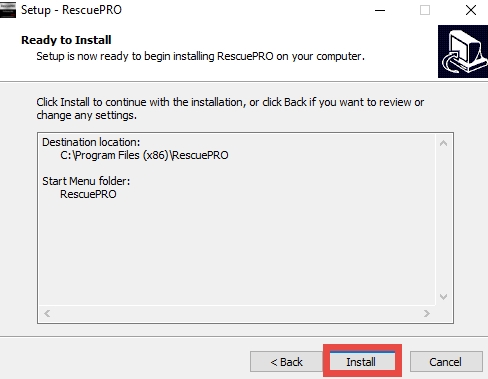
On Windows
- Download the ZIP file from the LC Technology page.
- Extract it.
- Run the installer with admin rights.
- Launch the program and enter your license key or the key that came with your bundled card.
On Mac
- Start the download. Safari will ask whether to allow downloads from lc-tech.com. Click Allow.
- Open your Downloads and click the DMG file — something like RPRO_7.0.2.2_OSX_STD.dmg.
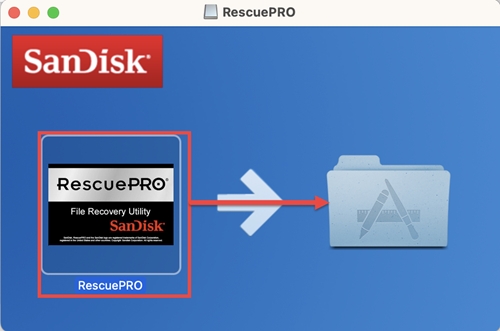
- The installer window opens with the RescuePRO icon on the left and the Applications folder on the right. Drag the icon onto the folder.
- Open Applications and click RescuePRO.
- macOS warns you that this is an app downloaded from the internet. Click Open.
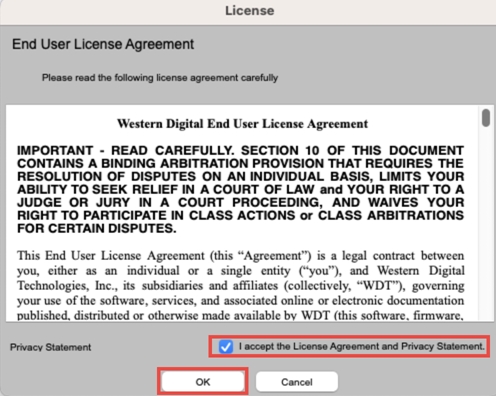
- Tick I accept the License Agreement and Privacy Statement on the EULA screen, then click OK.
- Enter your Mac password when RescuePRO asks for permission to make changes.
One more step on Mac: RescuePRO needs Full Disk Access to see your connected drives. For this: open System Settings > Privacy & Security > Full Disk Access, switch RescuePRO on, and restart the app. Skip this and the scan screen will simply come up empty, with nothing on screen explaining why.
Step 2. Recover Data with RescuePRO
From here, the steps are the same on both platforms.
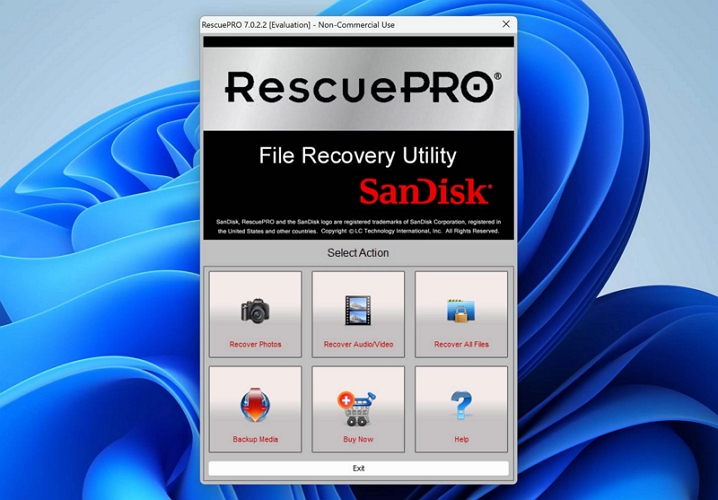
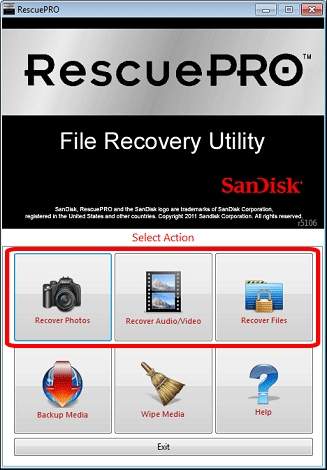
Step 1. Connect your SanDisk card or drive and open RescuePRO. The Select Action screen will offer three options — Recover Photos, Recover Audio/Video, and Recover Files. Click the one that matches what you lost.
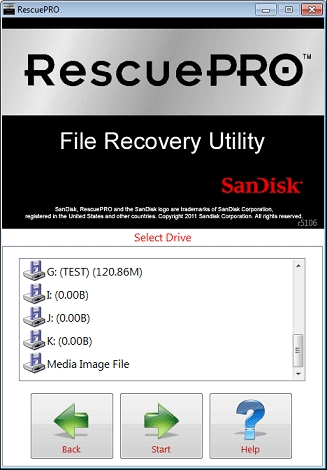
Step 2. RescuePRO lists every connected drive with its letter and size. Select your SanDisk drive.
Step 3. Click Start, then wait.
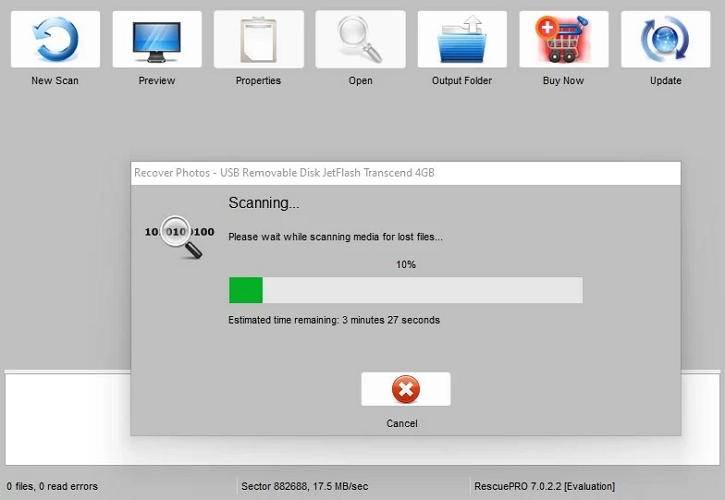
The time to scan will depend on the drive size: a 64 GB card will take a while while a large SSD can even run for hours.
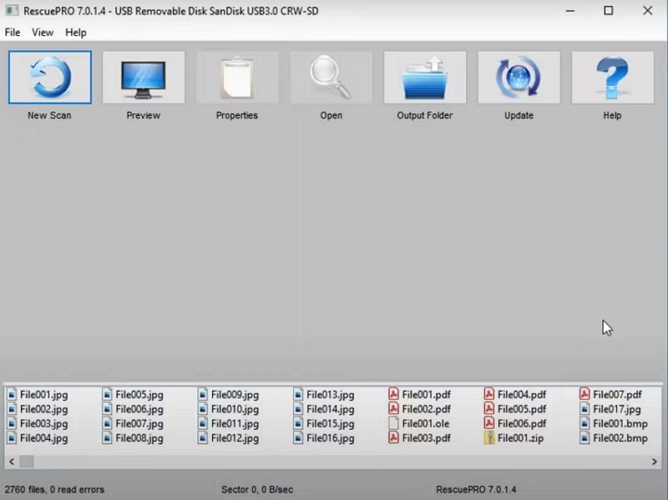
Step 4. Results fill the window as they come in. Click any thumbnail to preview a file and watch the status bar at the bottom for the running count.
On Deluxe, autosave is on by default, so files are written out as they are found. Click Output folder in the toolbar to open where they landed. You can even copy them somewhere safe — a different drive from the one you just scanned and then close RescuePRO.
User Experience
Whether RescuePRO works comes down to one thing: what happened to the SanDisk card.
Recent accidental deletions and quick in-camera formats usually come back. The condition is that you stopped using the card as soon as you noticed. For instance, you should not have copied anything new onto it.
With reformatted drives, RescuePRO doesn’t deliver good results. For instance, we've sometimes encountered recovered files that can't be opened. Sometimes they're corrupted beyond use.

We have even confirmed this with other users who tried RescuePRO in such cases. One reader we spoke to was able to pull only nine files from roughly 200 on a corrupted four-year-old SanDisk Extreme 256 GB card.
So in both cases — whether recovering accidentally deleted data or a formatted drive, the real-world results with RescuePRO vary. Sometimes you will get most of it back. Sometimes you'll get only a handful of files. Sometimes nothing. That is, there is a luck element that no software can engineer away.
Note on the SanDisk Extreme Portable SSD class action (SanDisk SSDs Litigation, Case No. 5:23-cv-04152-RFL in the Northern District of California)
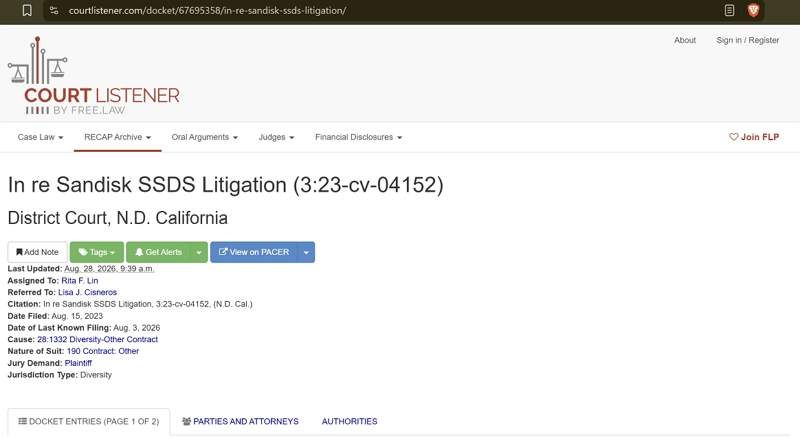
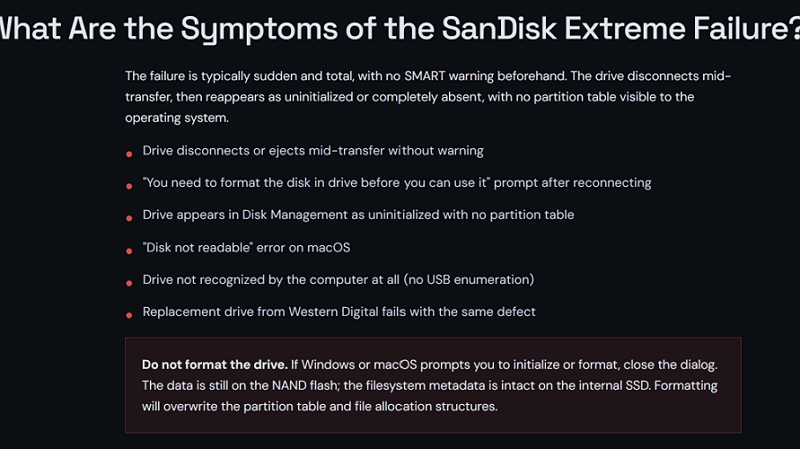
If you own a SanDisk Extreme Portable SSD V2 or Extreme Pro Portable SSD that failed suddenly with the symptoms below (see the image), it is best to avoid the software solutions. Instead, contact a specialist lab like Rossmann Group.
Top Alternative to SanDisk RescuePRO Data Recovery Software
Eassiy Data Recovery stands out for SanDisk recovery because of its success rate across the full SanDisk lineup. Our testing and reader reports point to the same result: in most cases, most lost data can be retrieved easily.
The bigger difference between SanDisk RescuePRO and Eassiy is that one license covers different brands of storage devices and supports most of most of data-loss scenarios, whether your files were deleted or the card was formatted. Eassiy's algorithms are simply built to look for every point of recovery and pull back data still present on the SanDisk media. On the recovery side, Eassiy is designed to identify more than 1,000 file types — images, MP4 video, Office documents, emails, and more. It groups them automatically — often with their original file names and metadata and lets you recover them selectively.
Eassiy vs. SanDisk RescuePRO
Here is how the two tools compare on the points that actually decide which one you need.
- RescuePRO Standard
- RescuePRO Deluxe
- RescuePRO Deluxe SSD
- RescuePRO Deluxe Commercial
The same software covers a range of device and scenario.
SSDs need the separate Deluxe SSD edition
Hard drives are not covered at all SanDisk cards
USB drives
SSDs
Hard drives
Media from other brands
US$59.99 Deluxe
US$59.99 Deluxe SSD
US$249.99 Deluxe Commercial, all for one year. US$49.99 for one year
US$69.99 for a lifetime license
Some recovered files failed to open Deep Scan rebuilds from raw data
Recovered more from the same corrupted card
RAW photos Over 1,000 formats
Media, documents, email, and archives
Preview before buying Yes
Preview before buying
How to Recover Data from SanDisk Drive
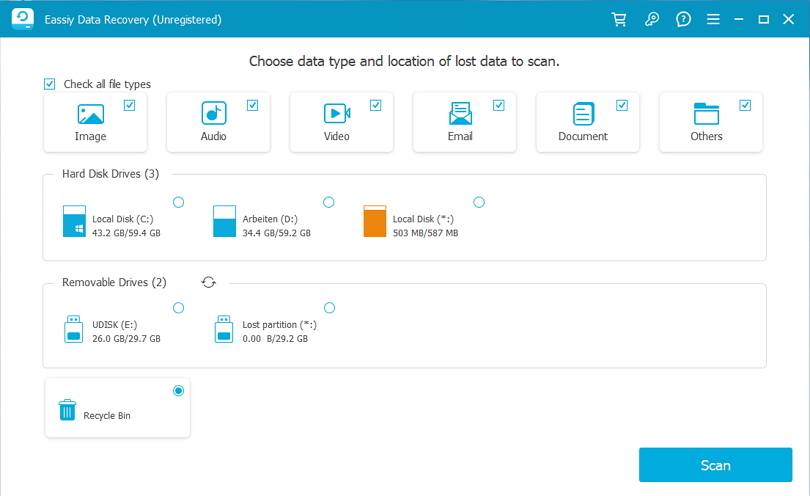
Step 1. Connect your SanDisk card, drive, or SSD, launch Eassiy, and select it from the list. You can narrow the search to specific file types here or leave everything selected.
Step 2. Click Scan to find out the recoverable content.
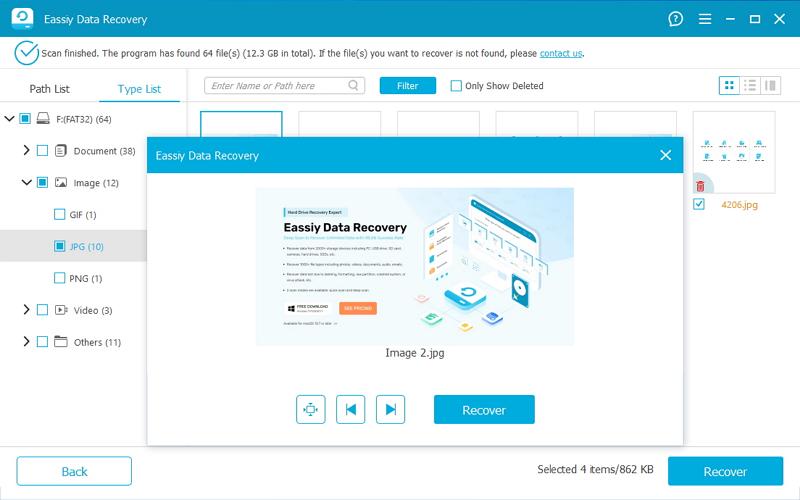
Step 3. Browse the results by type. Select what you want and recover it to a different drive from the one you scanned.
Conclusion
SanDisk RescuePRO Recovery software is a reliable tool. It is helpful in multiple data-loss scenarios too. However, RescuePRO does fall short sometimes, like failing to scan and index files properly.
So if your data matters to you, it makes sense to go with a more powerful option like Eassiy Data Recovery. Eassiy can recover different types of data from SanDisk media drives. And it does so with a high success rate, up to 98%.