


Data on your Western Digital drive can go missing in many ways. Maybe you accidentally deleted a folder. Perhaps, your My Passport stopped showing up on your computer one morning. Possibly, the drive slipped out of your hand and never spun up again. Luckily, it’s possible to recover data in all of these situations and in many other cases of data loss. However, each problem requires its own solution.
This article explains the best ways to recover data from Western Digital drives, depending on your situation. And whether you lost a few photos or a large amount of data, this guide will show you how to get it back.
Important: Before doing anything else, stop using the WD drive to increase the chances of successful data recovery. If you think the problem is mechanical, unplug the drive and keep it somewhere safe. If you deleted files by accident, don’t save anything new to the drive, since this could overwrite the files you want to recover.
Check Your Backups First
When you're in a hurry, you may forget that you have a backup.
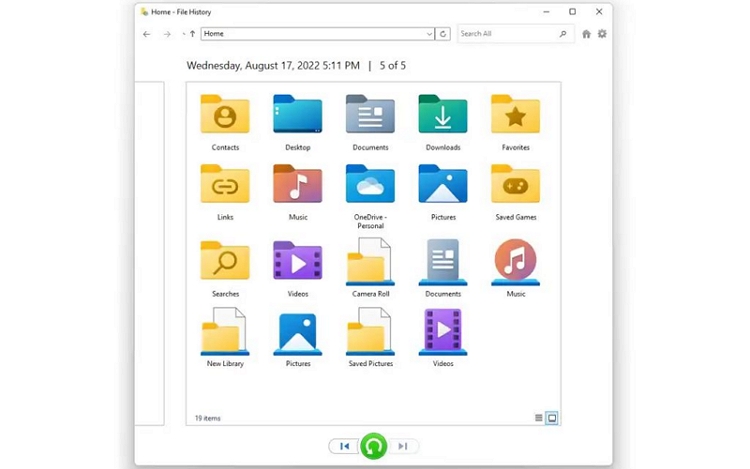
On Windows, for instance, check File History.
- Open Control Panel.
- Go to System and Security, then File History.
- If it shows as on, click Restore personal files in the left panel.
- Use the arrows at the bottom to move between saved dates.
- Select the files or folders you want, then click the green Restore button.
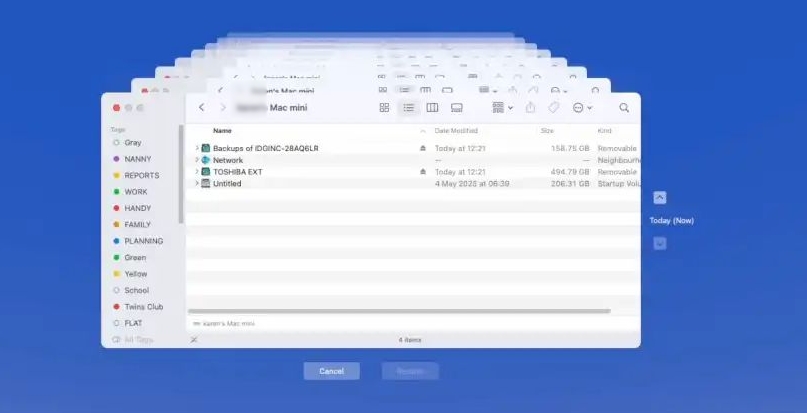
On a Mac, check Time Machine. If it was turned on, you’ll find copies of your files.
Also, check your cloud backups, especially for photos. For instance, anything stored on the Mac could be uploaded to iCloud Photos. Windows users usually find their stuff in OneDrive.
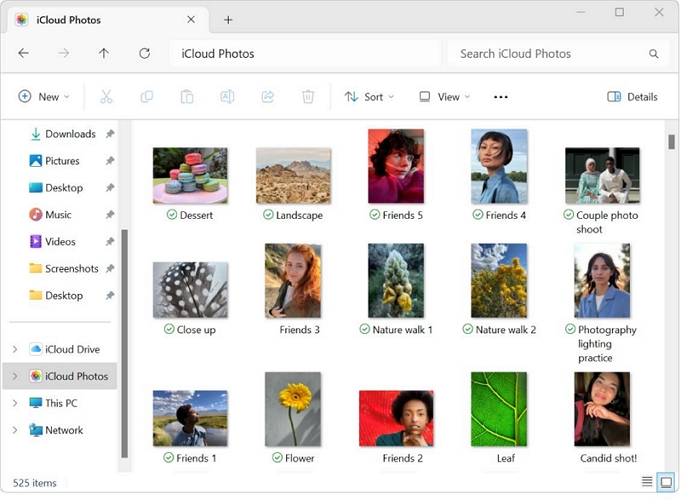
These online drives also come with their own recycle bins. So a file deleted from your computer, or synced across from it, can still be sitting there waiting. For instance, OneDrive holds deleted files for 30 days. iCloud Drive's trash also runs for 30 days.
Next, look in other likely places. Maybe you shared the file with a colleague or friend on WhatsApp or Telegram, or attached it to an old email. Ask them or check your sent messages.
Western Digital Data Recovery: 3 Ways to Recover Data from WD Drives
If nothing has turned up in your backups, you’ll need to recover the data from the drive itself.
There are three ways to do that. You can claim the WD Data Recovery Plan if you bought one with the drive. You can run recovery software on your own computer or send the drive to a professional recovery lab.
Which option fits your needs depends on two things: what went wrong with the drive and what you have available. Here is a quick comparison before we get into each one.
You haven't tried any recovery yourself yet. An active plan bought with the drive from the WD Store.
Plus, your order number and serial number. My Passport, My Book, WD Elements, and other qualifying drives bought from the WD Store.
Your computer still sees the drive. A Windows or Mac computer.
A spare drive to save the recovered files. My Passport, My Book, WD Elements, WD_BLACK, internal WD drives, USB drives and SSDs.
Any WD drive, bought anywhere.
Way 1. Claim Your WD Data Recovery Plan
Western Digital offers an optional data recovery plan when you buy a hard drive from its retail store. For this to work, you must have added the plan at the time of purchase.
Ontrack, the famous data-recovery service, will handle the recovery. Depending on the offer, you just have to fill out a form and ship the drive to their facilities. Ontrack will run a free diagnostic and recover your data.
But keep in mind that you must meet all requirements to request a recovery attempt. For instance, you cannot claim recovery for a WD hard drive used in a RAID setup, or one holding sensitive medical information protected under HIPAA. So make sure to read all the terms and conditions before claiming the data recovery.
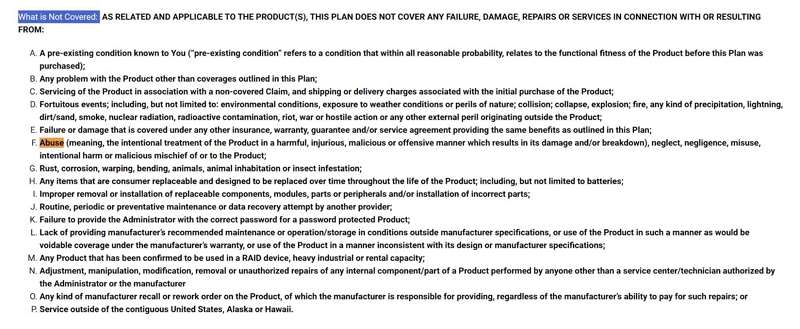
Overall, be accurate and honest when making a claim. The plan can be canceled if you materially misrepresent information.

Steps to Recover WD Digital Drive Data Through WD Data Recovery Plan
Step 1. Pull out the WD drive and keep it safe. Also, do not run any repair tools on it. Do not reformat it. And do not take it to a nearby recovery service or attempt to use data recovery software yourself, because that will void the data recovery plan you paid for.
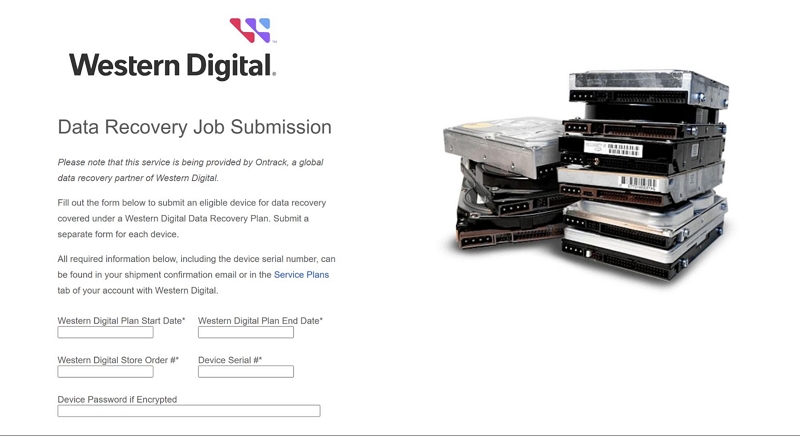
Step 2. Sign in to your Western Digital account. Open the Service Plans tab. You will need your order number, device serial number, plan start date, and plan end date. Enter all of this and confirm the plan is still active.
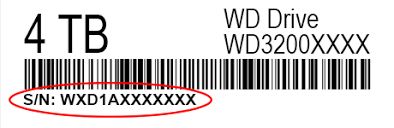
Note: Western Digital and SanDisk have split, but it does not kill your coverage. So even if you have a SanDisk-branded drive, you can follow the same steps. The plan will still hold.
Step 3. Go to Ontrack's Western Digital job submission form and fill it out. Submit a separate form for each device if you have more than one. One form does not cover two drives.
Step 4. Wait for verification. Ontrack will check your claim and send you a prepaid shipping label. You will also receive a case number and a dedicated Ontrack representative who can provide status updates by email.
Step 5. Use the original packaging or packaging that protects the WD hard drive well.
Step 6. Ship the packed drive to Ontrack using the prepaid shipping label. Ontrack will evaluate the device and tell you whether files can be recovered and which ones.
Note: If the drive is encrypted, you’ll need to provide the password. Without it, they cannot proceed. Ontrack will void your claim.
Step 7. Review and verify the recoverable files first. Then Ontrack will load them onto a replacement drive and ship it to you.
Note: Any recovered data under 2 GB will come as a secure download link instead if your plan does not include a replacement drive.
If they cannot recover anything, WD will usually return the money as store credit.
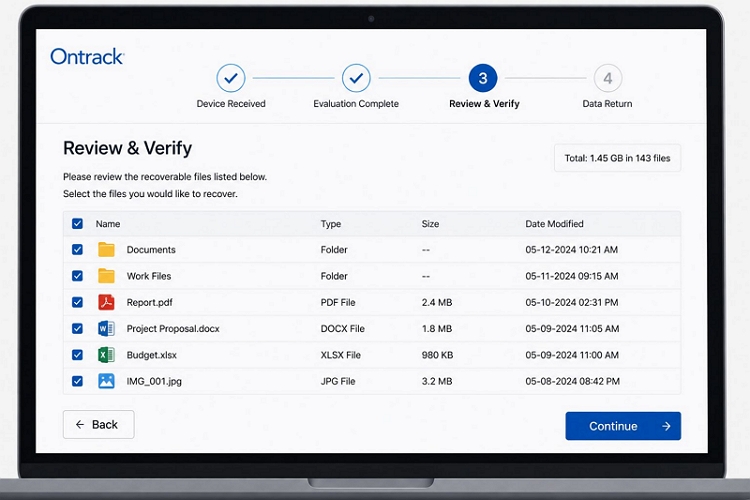
US$9.99 for 2 years, $14.99 for 3 years.
• No recurring fees or extra charges as long as the plan is valid.
• If Ontrack cannot recover any data from an eligible device, the full plan price is refunded as store credit.
• Ontrack reports 600,000+ completed recoveries at a 90% success rate.
• Outcome depends on damage severity, time elapsed since loss, and other factors.
• Logical failures recover well; physically broken drives or forgotten encryption passwords are much harder.
• Customers have also reported up to three weeks.
Way 2. Use Western Digital Data Recovery Software
If you didn't opt for the WD recovery plan or if you don't meet its strict requirements to even claim the data recovery request, you can use Eassiy Data Recovery software.
Eassiy lets you recover files from My Passport, My Book, and other WD drives, regardless of where you bought them. It can help with common data-loss situations: accidental deletions, an emptied Recycle Bin, accidental formatting, partition loss, file system corruption, virus damage, and even when the device isn't recognized properly.
Eassiy is also simple to use. You just have to install it on your computer, and Eassiy will scan recognized drives and let you access deleted or corrupted data.
What sets Eassiy apart is its ability to identify and group recoverable data by file type. All recovered image files will be grouped in the image category, and all video files in the videos group. This lets you quickly navigate to your precious photos or videos and recover the most important data first.
Steps to Recover Data from WD My Passport with Eassiy
Step 1. Download and install Eassiy Data Recovery on your Windows or Mac.
Note: The free version lets you scan and preview recoverable files. So you can use the free scan to confirm your data is still there before you do that.
Step 2. Connect your WD My Passport to the computer. It will show up as an identified drive. Select that from the list and scan it.
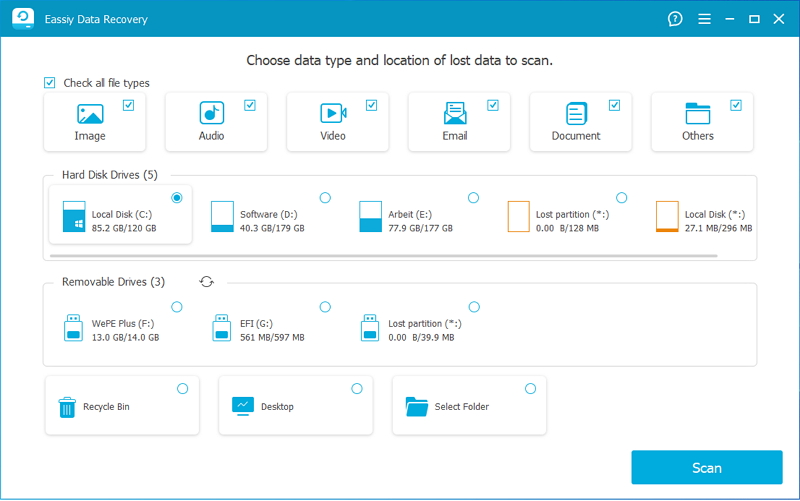
Step 3. Once the scan finishes, you can use the file type filters to locate your files. Preview the files before recovering them.
Step 4. Select the files you want. Then, click the Recover button.
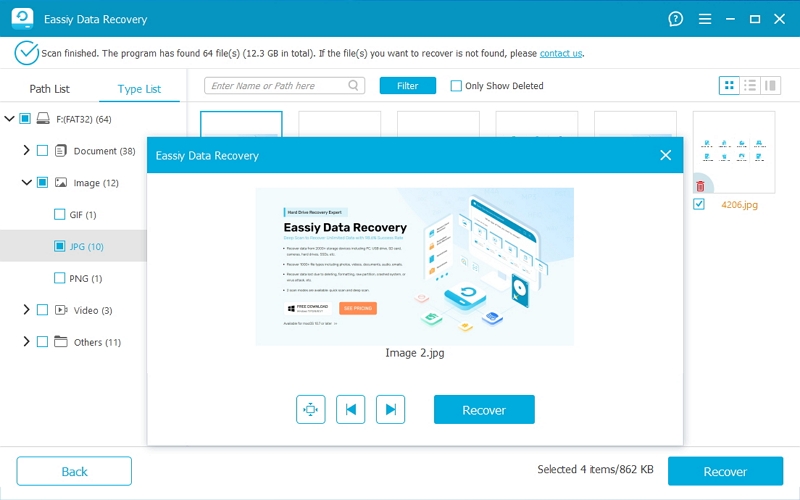
Eassiy will allow you to save them to a preferred location. Make sure you recover them to a different drive than your WD My Passport.
Monthly plan: US$39.99.
Annual plan: US$49.99.
Perpetual plan: US$69.99 (lifetime, one-time payment).
Enterprise plans are sold—contact customer care.
Many users who didn’t qualify for the data recovery claim have used it and successfully retrieved lost data, with reports of recovering hundreds of GB.
Keep in mind recovery depends heavily on the condition of the data. Deleted files are much more likely to be recovered if they have not been overwritten or physically damaged.
In our case, a 2 TB My Passport deep scan took 1 hours and 40 minutes. It recognized almost all the accidentally deleted data and recovered it.
Way 3. Seek Western Digital Data Recovery Services
If you don't have the Data Recovery claim option discussed in Way 1 or if the damage is so severe that Eassiy software cannot even see the disk, it is time to call in a professional recovery lab. You have two broad options here.
You can look for a reputable local data recovery service. However, more often than not, these shops lack proper cleanroom facilities. They may also not be equipped to handle severe cases, such as snapped heads or deep platter damage.
Or you can go with a national lab. These facilities typically operate under ISO 5 cleanroom standards, which are required when opening a hard drive without further damaging it. In the United States, companies like DriveSavers or Ontrack itself accept direct job applications. The process is similar to what you saw in Way 1: you have to pack your drive and send it to their lab. They will test it, then tell you whether the data is recoverable.
The major difference is that you'll have to pay out of pocket for everything. That means the service fee for the evaluation, the recovery attempt, and the shipping both ways will cost you money. And if they manage to recover data, you'll have to pay fees for that too.
The good thing is, most reputable data labs offer a no-data, no-charge policy. So you can take advantage of that.
How to Contact Local Data Recovery Services for Retrieving WD My Passport Data
Step 1. Research and contact a professional recovery service. Ask about their no-data, no-charge policy and whether they have experience with WD drives. For example, if you're in Portland, you can search for local recovery services in Portland to find the best options.
Step 2. Ship or drop off the drive. Make sure to use sturdy packaging.
Step 3. The lab will evaluate the drive and send you a quote. This evaluation is often free, but confirm that upfront.
Step 4. Approve the quote. The lab will then attempt the recovery in a cleanroom environment.
Step 5. Review the recoverable file list. If you are satisfied, the lab will load your data onto a new drive or secure download and return it to you.
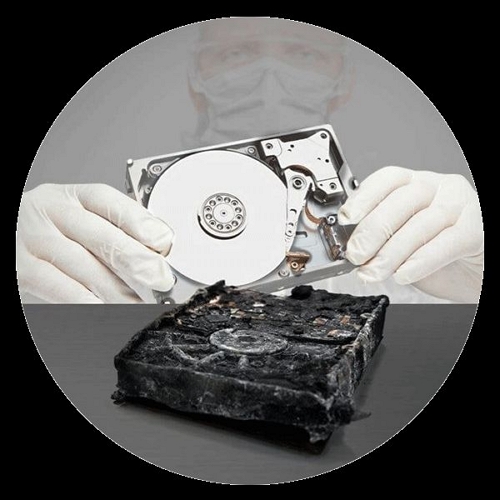
• Standard recovery: Typically costs US$1,000–US$2,000+.
• Severe damage, large-capacity drives, or rush service: It can cost significantly more.
• Payment policy: Many professional labs charge only when data is successfully recovered, but confirm the lab's policy before sending your drive.
• Professional cleanroom labs generally have high success rates when dealing with mechanical failures and complex logical damage.
• Severely damaged platters, fire damage, or extensive water damage can significantly reduce the chances of recovery.
• Recovery: Usually takes 1–3 weeks.
• Rush service: May reduce the recovery time to a few days, but costs extra.
FAQ: How to Recover Data from a WD External Hard Disk Which Is Not Detecting
When a WD drive isn't detected, several things could be the cause. You have to check each place. Here is what to look at.
Connection and Power
WD drives like My Passport are bus-powered. So they receive all their power from the USB port itself. Keep in mind these drives can draw up to 800mA. An unpowered USB hub can cause the same problem.
So work through the connection first:
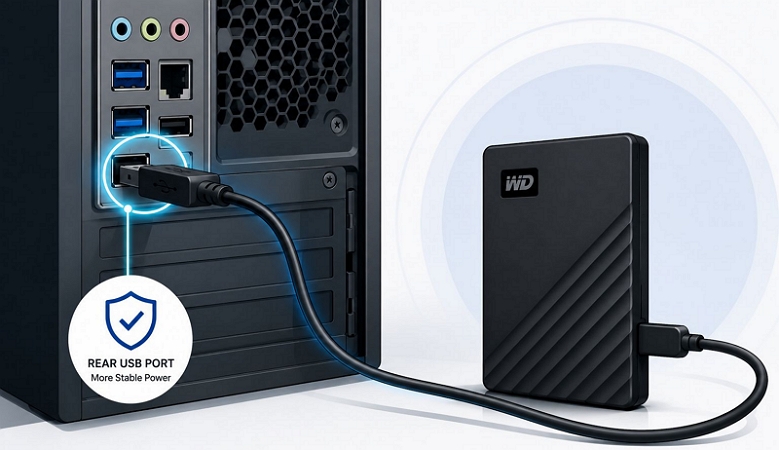
- Use a rear port on a desktop instead of the front-panel ones. The rear ports connect straight to the motherboard and supply steadier power.
- Swap the cable. A faulty USB cable fails far more often than drives do.
- Try a USB 2.0 port. It sometimes works when a USB 3.0 port does not.
- Plug the drive into a completely different computer. This will tell you whether your ports are at fault or the drive is.
Windows and Drivers
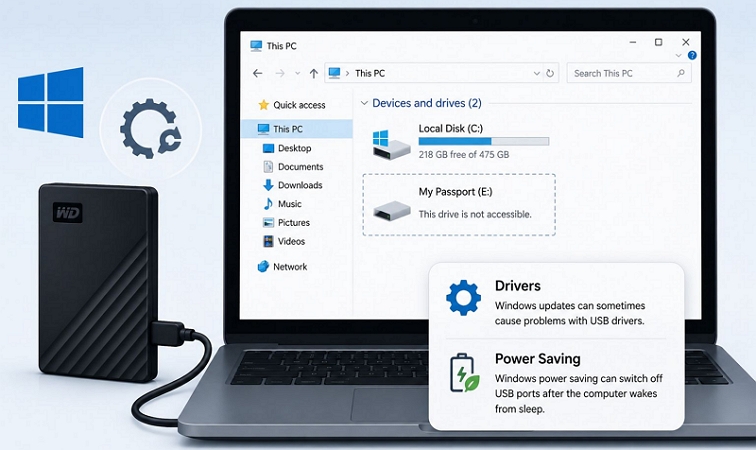
Sometimes Windows can recognize the Western Digital drive but fails to assign it a drive letter. So even a perfectly healthy My Passport will stay invisible in File Explorer. There are a few Windows-related problems that can cause this:
- Windows updates sometimes cause problems with USB drivers.
- Windows power saving switches off USB ports, usually after the computer wakes from sleep.
Make sure to check all of these.
File System and Partition
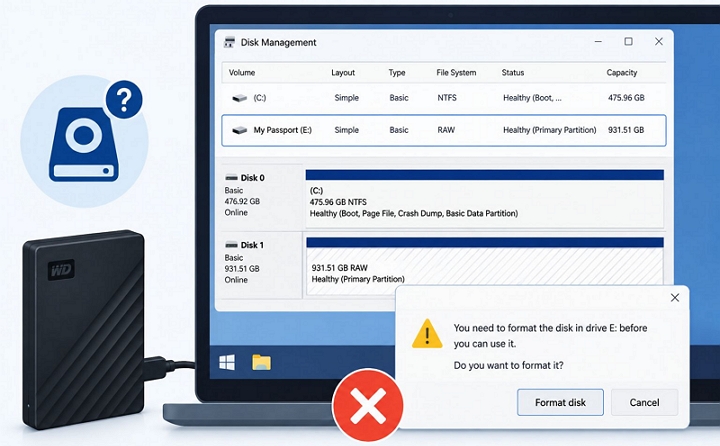
Often, your drive does not appear in File Explorer, but it will appear in Device Manager. This simply means there is no valid partition (or file system). Disk Management will show it as RAW or Unallocated. Windows simply offers to format the drive. Do not accept such a request. Many people simply accept and reformat the drive, losing all their data. Instead, use Eassiy Data Recovery software. Eassiy can recognize the drive and let you recover your data before formatting.
Encryption
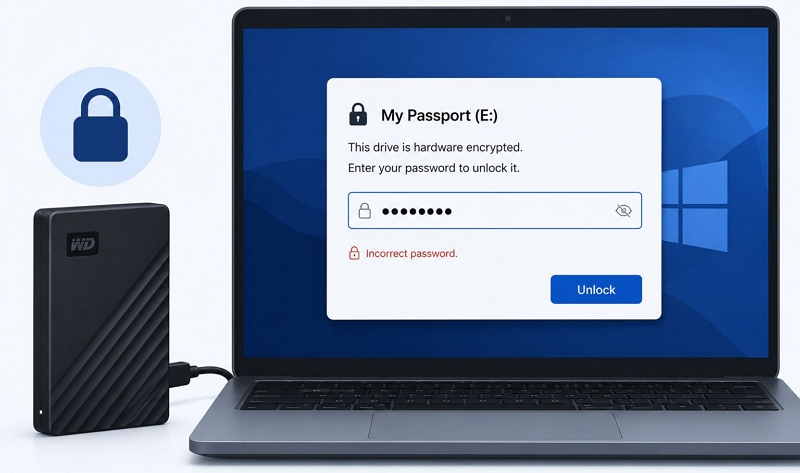
My Passport models include hardware encryption. So if you’ve set a password through WD Security and lost it, the drive will connect and stay locked. Even data recovery companies, like Ontrack, can't help you recover the data unless you get the password.
Physical Failure
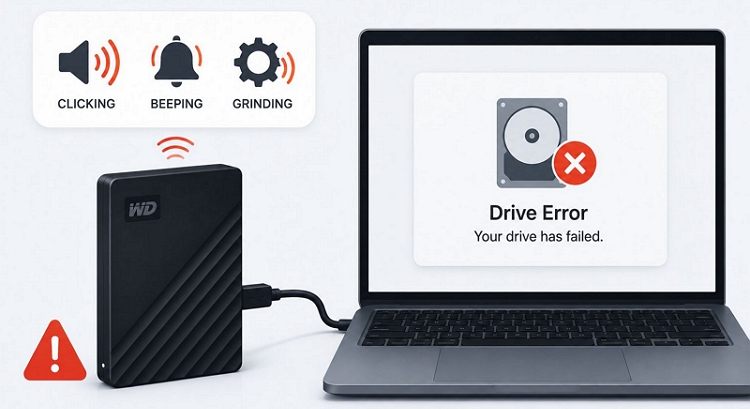
Listen to the drive when you plug it in. If you hear any clicking, beeping, or grinding, the drive has failed. At this point, you will have to take it to a lab.
Even when you hear the normal spin-up hum, the fault could be with the USB bridge, the partition, or the software.
Simply unplug the drive at that point and take it to a lab.
Final Words
Most WD drives that stop working still have your data sitting on them. But depending on the problem, whether the data was deleted by accident or the drive failed mechanically, the fix will change. We have walked you through each type of data loss scenario and what you can do in each case.
So remember this. If your hard drive is physically damaged, you'll need to use a data recovery service and ship the drive in. But if it is an accidental deletion, partition corruption, or something similar, use Eassiy Data Recovery software. It will get your data back with a simple scan, without much fuss.