


As Hitachi stopped making these drives back in 2012, there's no official support for Hitachi data recovery. But don't worry. We've researched the best recovery software programs and the four best recovery labs you can trust with your Hitachi drive.
We tested each data recovery program on different Hitachi drives, such as Ultrastar, Deskstar, Travelstar, and more, to see which software actually recovers accidentally deleted or corrupted data. Then we listed the top three that consistently delivered, with a high success rate.
And if your Hitachi drive needs a cleanroom, you can't just send it to any lab. Not many services offer real support for these ARM-based drives. In fact, many labs simply don't have spare motor parts anymore. So we called real customers who'd had their Hitachi drives serviced across many labs and found out which ones actually helped. Based on that and our personal insights, we included four labs that truly service Hitachi drives.
Hitachi Data Recovery: How Much Does It Cost
How much you pay for data recovery really comes down to what went wrong with your drive. So what’s the real price tag? It all depends on what happened to your drive.
Ultimately, the main factor that changes the price is donor parts and that’s mostly due to physical damage. Since Hitachi stopped making drives in 2012, donor parts are rare, which can make recovery more expensive.
Hitachi Data Recovery: 3 Ways to Recover Data
You might have accidentally deleted the file, formatted the Hitachi drive, or the drive may have suffered physical damage. We’ve covered three methods to help you, depending on the situation. Here is a table to help you find the right one quickly.
• Works even if the drive is dead or damaged, because you never touch it • A second copy stored elsewhere
• Windows Backup, another external drive, a cloud account, or Time Machine
• You deleted a file, formatted the drive, or a corrupted partition • Recovery software installed on a different drive, never the Hitachi
• A separate drive to save the files to
• Stop using the Hitachi drive right now
• It stopped spinning
• It does not appear in Disk Management • A lab that handles your Hitachi model
• The service has matching donor parts and firmware tools
Way 1. Restore Backup
This method doesn't require anything from your Hitachi drive. Even if the drive is completely dead, water-damaged, or unreadable, this method will work.
It simply requires a second copy of the missing data. That is, you must have backed up the missing data beforehand, like a local backup on a second drive, a cloud backup, or a manual copy on an external drive. If you have any of these in place, you can restore from them easily.
Steps to Recover Hitachi Data for Free
The method you follow will depend on the type of backup you opted for beforehand. You have to check the appropriate location according to which backup you have. Here are some examples.
Option 1. Restore from Windows Backup
Whether you are on Windows 7, Windows 8, Windows 10, or Windows 11, all of them have a backup mechanism — Backup and Restore, File History or Previous Versions. If you turned on one of these features, you can restore from it.
First, find out whether such a backup exists at all. Here is how to identify your version and what it would have saved:
The good thing is that Windows’ default local backup has no fixed time limit. For example, if you’ve set Windows to keep backups for as long as there’s enough space, it could still have data you deleted two or three years ago. So, whether your missing data is still there, how far back you can go, and where the backup is stored all depend on your individual settings, just check the table above and verify it manually.
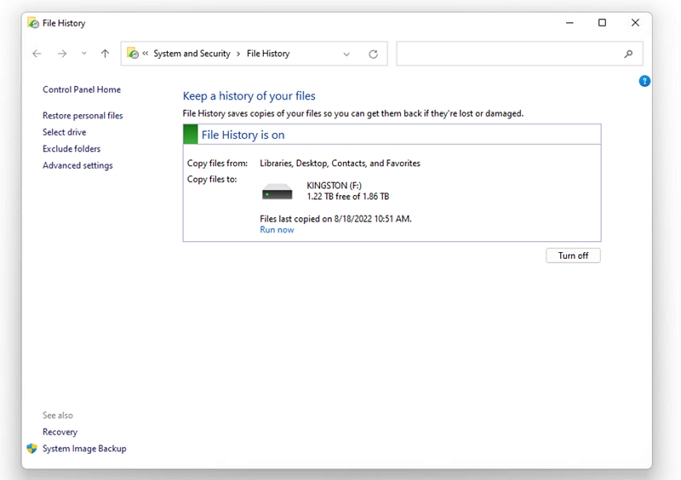
If you had it turned on, here’s how you can restore the data you lost. The steps are the same on Windows 7, 8, 8.1, 10, and 11.
- Open the Control Panel.
- Choose System and Security.
- Select File History. On Windows 7, select Backup and Restore instead.
- Click Restore personal files in the left pane. On Windows 7, this will read as Restore my files.
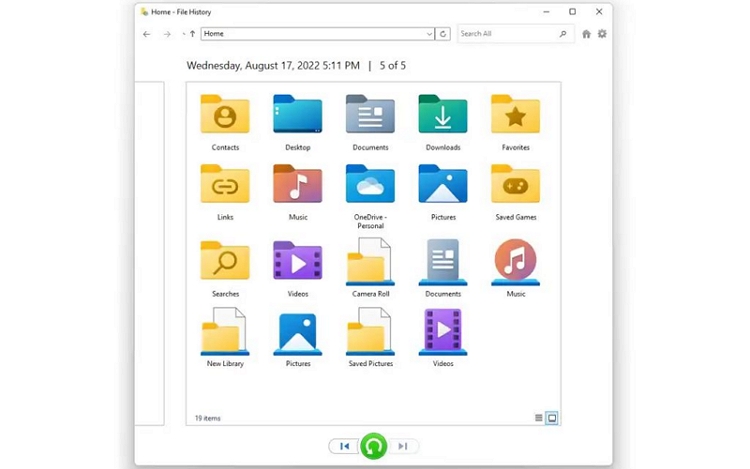
- Browse the timeline.
- Go to the date you want.
- Click Restore to and pick a different location. (Do not use the green Restore icon, as it will override the current contents of the folder).
Option 2. Check Your Cloud Backups
Many of you might have set up Google Drive, OneDrive, or Google Photos backup on your Windows PC. If you did, it is worth checking the cloud service contents too.
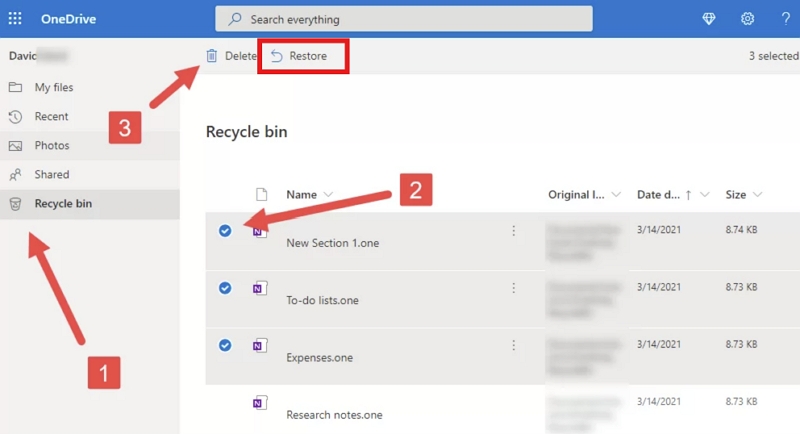
Also, you may have live sync enabled. For instance, if you’ve set up OneDrive to continuously back up your Hitachi drive, deleting a file from the drive will sync the deletion to OneDrive’s folders too. However, do not forget to check OneDrive’s Recycle Bin. Many users forget that. The cloud recycle bin holds a copy of any deleted content for the last 30 days. If OneDrive or Google Drive syncs are running on a work or business account, the data could sit in the Recycle Bin for even longer.
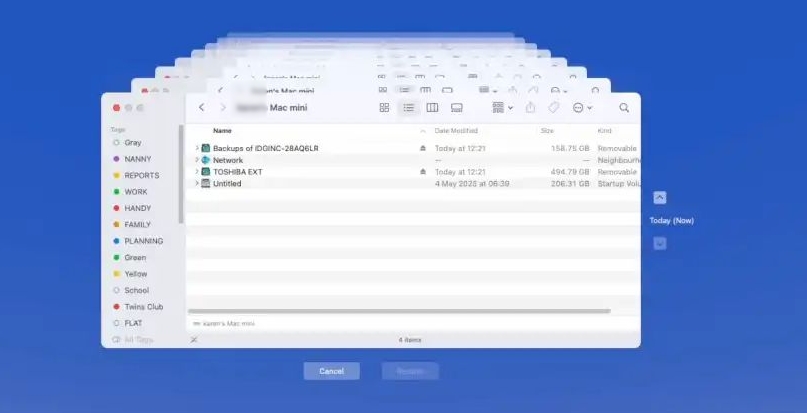
Option 3. Restore from Time Machine on Mac
This one is for macOS users. If you connected your Hitachi drive to your Mac or iMac and had Time Machine running, your copy could be on the Time Machine disk.
- Click the Time Machine icon in the menu bar.
- Choose Browse Time Machine Backups. On older versions, it will read Enter Time Machine.
- Use the arrows or the timeline to move back to a date before the files were lost or deleted from the Hitachi drive.
- Select the files or folders you want.
- Click Restore.
They will go back to their original location on the Hitachi drive.
Way 2. Use Hitachi Data Recovery Software
Most hard drive brands have their own recovery tools. For example, SanDisk suggests RescuePRO for its users. Hitachi is different. As the brand was discontinued years ago, there is no official data recovery software for these drives. Western Digital, which now owns Hitachi, does not support these older drives in its backup software either. So, you will need to use third-party data recovery software to get back your missing or deleted files. If you look online, you will see many tools that promise to help, but not all of them work well.
We tried several data recovery programs on Hitachi drives in our lab, including Travelstar, Deskstar, Ultrastar, and Touro. We wanted to see which ones could really recover lost and deleted files from these drives. Many tools did not have the right features to scan, find, and organize recoverable files. Only a few passed our tests and made it onto this list. Here’s how the top three performed.
It sorts them into categories as it scans. It recovers documents, photos, videos, music and emails. It recognizes 480+ file extensions across roughly 300 file families. The list leans toward photos and camera RAW.
Everything we rescued landed in random recup_dir folders as f0012345.jpg.
Everything opened. We got back 96 GB of the 110 GB we had permanently deleted. It listed the files fast and flagged several JPGs as recoverable. However, many of those JPGs didn’t open. Many of them had dead pixels. It restored most of the photos and documents.
Deep Scan found some of the images, but most files (MP4s, MP3s, and other media) did not play. It ignores the file system and reads the platters directly, so the format made no difference to what it found.
It arranged nothing afterward. But it did pull real data off a formatted disc, and that makes it a solid choice here.
Deep Scan on the 1 TB Deskstar finished in roughly 1.6 hours. Quick Scan ran for about 22 minutes on the 500 GB drive.
The Deep Scan estimate on the same Travelstar was around eight hours. We gave up after sixty minutes, and it had identified only part of the data by then. Very slow and there is no way around it.
There is no pause button, so you have to leave the machine running.
Our scan on the 500 GB Travelstar took eleven hours.
A paid license is required to restore the files. Monthly and annual plans are available. The free version recovers with no size cap.
Pro costs $24.95 and adds support and virtual drive handling. It is free and open source.
It ships with TestDisk. There is no paid tier.
macOS 10.10 and later. Windows only. Piriform still maintains it, though updates are rare — version 1.55 landed in June 2026, two years after the last one. Works on Windows, Mac and Linux.
Note: If your Hitachi drive is clicking, throwing SMART warnings, or has injuries, do not run any data recovery software on it. Forcing a scan on an injured drive will put more strain on the drive. That can damage it further and push your data past the point of recovery. Instead, you can send it to a lab for a full evaluation. That is covered in Way 3.
The table shows the results. Eassiy Data Recovery is the best way to get your data back from a Hitachi drive. It works with Deskstar, Travelstar, Ultrastar, and Touro drives, and has a high success rate. Eassiy finds files that PhotoRec and Recuva missed. It also works faster. Plus, it was able to identify every file extension and sort the results into clear categories. So you don’t have to waste time sorting the files manually after recovery.
What really makes Eassiy stand out is how many data loss situations it can handle. Maybe you deleted something by mistake or formatted the whole drive with important files still on it. In both cases, Eassiy scans the drive and lets you recover most files, as long as they have not been overwritten.
How to Recover Data from Hitachi Drive with Eassiy
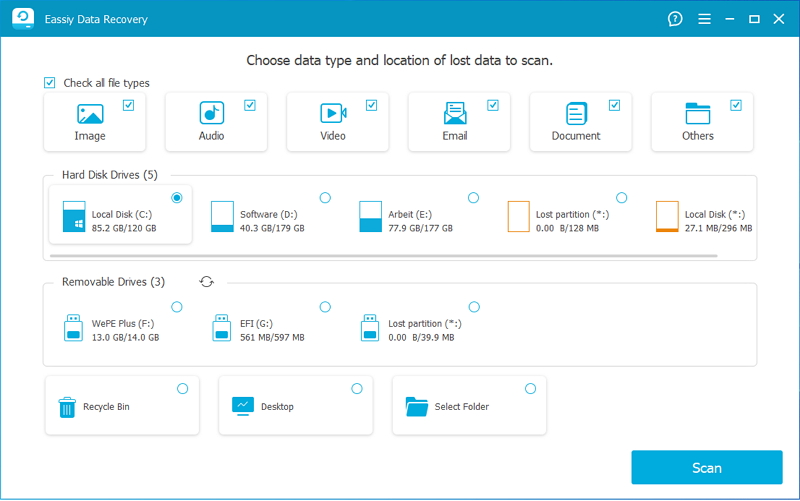
Step 1. Connect the Hitachi drive to your computer. Launch Eassiy Data Recovery. The software will detect the drive automatically and list it under Removable Drive.
Step 2. Tick your Hitachi drive. Then choose the data types you want to look for or just select them all.
Step 3. Click Scan to start a Quick Scan.
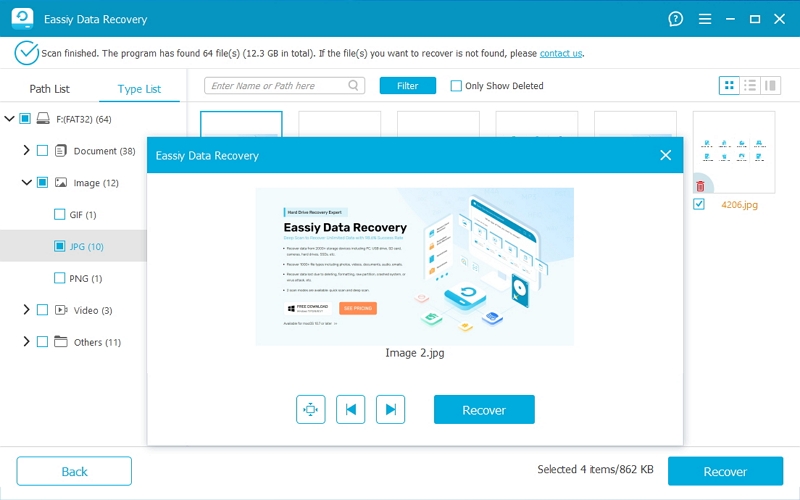
Step 4. Check the results. You can group them using the Type List and Path List views. If your files aren't there, run a Deep Scan and let it finish.
Step 5. Narrow the results down with the search box or recover everything that was found. Eassiy will let you save the files to a folder of your choice.
Way 3. Use Hitachi Data Recovery Service
If your Hitachi drive is clicking, beeping, or not showing up in Disk Management, it is time to take it to a recovery service. But be careful about which one to choose. Hitachi drives with model numbers starting with HDS, HTS, HUA, or HCS are all built around ARM-based Renesas controllers running Hitachi's own firmware. That differs from Seagate or Western Digital drives of the same era, which used Marvell chips. So not all data recovery services have the right tools and repair techniques to diagnose them.
There is a second problem. These drives went out of production in 2012. So plenty of labs no longer have the correct donor parts to repair them. So the data recovery service you pick matters more than anything else here.
In all, it is better to send the damaged Hitachi drive directly to a national lab that supports repair for these ARM-based drives in its inventory. Here are four that still support them today.
Most Hitachi cases land between $650 and $1,200. Platter damage can push it to $2,500. Free evaluation first, then a quote.
Consumer cases generally open around $1,000 and climb with complexity. Free diagnostics and quote.
Difficult physical cases can reach $3,000. Free evaluation, then a flat-rate quote.
Usually 40 to 50 percent below competitors.
5 to 7 days expedited ($250 extra). 7 to 14 business days standard.
2 to 5 days rush.
24-hour emergency available. 5 to 7 business days standard.
1 to 2 days intermediate or priority. 4 to 8 business days standard.
3 days priority available.
We contacted customers who sent Hitachi drives in, and many praised it for recovering their data.
The complaint we heard most was the wait — four to five weeks tests anyone's patience. A+ with the BBB.
But customer ratings sit closer to three stars on Trustpilot.
People rate the recovery quality highly and say most of their data came back intact.
The frustration is the quote, which often jumps well past what they expected after the free evaluation. Nearly every complaint we found was about price.
However, most users got their files back. It pulled data out of most whirring and clicking cases, and even off drives that had gone completely silent.
Prices came in lower than rivals. The trouble starts when a recovery fails — communication slows right down, and getting the drive returned takes a while.
Pick the service that fits your situation and get in touch. They will send you a free shipping label. Most run a “no-data, no-charge policy.” So a failed attempt will cost you nothing in fees.
Here is how the process usually works.
Step 1. Contact the lab and request a shipping label or post the drive to their intake address.
Step 2. Fill in the consent form and the case details they send you.
Step 3. The lab will run its evaluation and tell you what is recoverable and what it will cost. Keep some headroom in your budget. That figure can rise once they open the drive and see the real damage.
Step 4. Approve the quote. Recovery will only begin after you agree to the price.
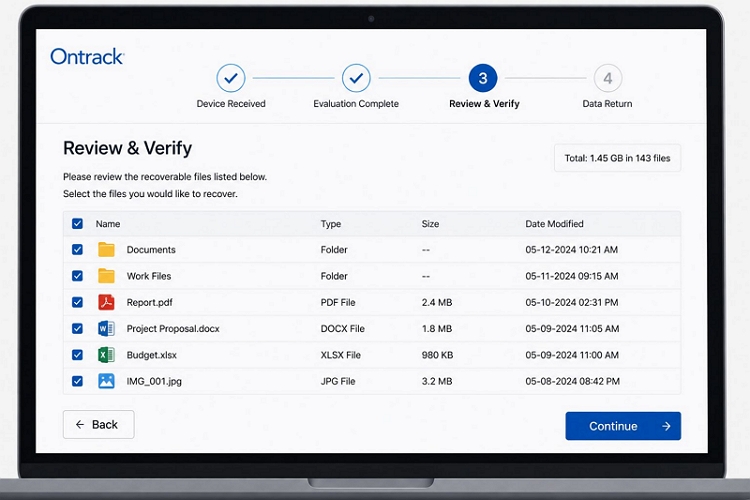
Step 5. Once the recovery is finished, they will copy your files onto a new drive and ship it back. Anything under 2 GB usually comes back as a secure download instead.
Final Words
For most Hitachi drive data loss problems, regardless of the model, whether you own an Ultrastar, Deskstar, or something else, your files are still recoverable. This guide has walked you through real Hitachi drive recovery solutions, so don’t panic.
- If you’ve been careful enough to have a backup, restoring from it is the fastest option and it will cost you nothing.
- If the drive still mounts and shows up normally and you’ve simply deleted a file or run into a formatting or corruption issue, a data recovery software solution is the way to go.
- And if the drive has been physically damaged, you’ll usually need to pick a lab that supports Hitachi drives and get it repaired, as discussed above.