


Files vanish fast. Whether your PC crashed or a USB drive failed, EaseUS Data Recovery Wizard promises to recover 1000+ file formats with a 99.7% success rate across SSDs and hard drives alike. Still, $69.95 monthly is steep.
Is it safe? Out of the box, the free build caps recovery at just 500MB. You can stretch that limit to 2GB by sharing a promotional link online, which easily rescues a few lost text documents or JPEGs. But formatted drives? Larger video files? You hit a paywall immediately. Before handing over your credit card or downloading shady license cracks, see how EaseUS performs in real-world testing and where cheaper alternatives do a better job.
What is EaseUS Data Recovery Wizard and its key features
EaseUS Data Recovery Wizard is a desktop recovery utility for Windows and macOS. It pulls lost files off USB drives, SSDs, laptops, and camera SD cards across common data loss scenarios. The marketing material boasts support for 1,000+ file formats across 2,000 storage device types, along with a theoretical 99.7% success rate. Take that percentage with a grain of salt. Still, the simple interface means non-techies can jump straight in without technical training.
Platform support is solid. On macOS, version 20.1.0 runs natively on Apple Silicon M1, M2, and M3 chips without relying on Rosetta emulation. It even prompts for T2 security chip permissions during boot disk scans. Real-world results come down to your physical storage hardware, though.
TRIM changes everything. When an operating system runs a TRIM command on an SSD, it clears flash memory cells almost immediately after you delete a file. Once that happens, recovery is virtually impossible. Mechanical hard drives are far more forgiving because their magnetic platters retain raw data until overwritten.
Key Features of the Software:
- Dual scan modes featuring a quick MFT index search plus a sector-by-sector Deep Scan for missing partitions.
- Broad device support for over 2,000 storage types including HDDs, SSDs, SD cards, and USB thumb drives.
- Support for 1,000+ file formats covering documents, photos, audio, compressed archives, and emails.
- RAW partition recovery to reconstruct corrupted or unreadable file systems.
- Remote NAS data recovery over network connections without unmounting physical drives.
- Built-in repair utility for damaged MP4, MOV, and JPEG file headers.
- File preview window for verifying documents and images under 100MB before recovering them.
Scan Modes and Real-World Benchmark
The scanning process uses two distinct engine passes. Quick Scan checks the Master File Table (MFT) or Directory Record for recently deleted items. It takes seconds. Deep Scan bypasses file systems entirely and inspects drive sectors directly when the index is gone. Expect deep scans to drag. In our test on a formatted 1TB Western Digital Blue HDD (WD10EZEX), Deep Scan took 1 hour and 42 minutes to complete. Bad sectors will slow that pace down even further.
Pros and Cons of the Software
Listed below are the pros and cons of EaseUS Data Recovery Wizard
Pros
- Quick Scan finishes in under two minutes on healthy file systems.
- Native Apple Silicon support for M1, M2, and M3 chips—no Rosetta needed.
- File preview window lets you test document and image integrity before spending cash.
- Basic repair tool restores light header corruption on damaged MP4 and JPEG files.
- Handles RAW formatted drives that Windows marks as completely unreadable.
Cons
- Deep Scan crawls when scanning high-capacity mechanical hard drives.
- Deep Scan usually destroys folder structures, dumping files into generic names like
FILE_001.dat. - SSD recovery success drops close to zero if the TRIM command has executed.
- Considerably more expensive than competing single-license tools.
- The free version caps recovery at 500MB unless you post a social share to unlock the full 2GB limit.
EaseUS Data Recovery Wizard Free Vs Full
EaseUS splits the software across three main tiers: Free, Pro, and Technician.
Under the hood, the free download uses the exact same scanning engine found in the commercial builds, but EaseUS hard-caps your actual file exports. It works fine for quick, small-scale file rescues. Just don't expect a free lunch.
Watch out for how that free quota actually works. You get 500MB out of the box. That is it. To unlock the full 2GB allowance, you have to click the share icon in the top-right corner of the main app window and post their promo link to Facebook or X (formerly Twitter). Skip that social media pop-up, and you stay stuck at 500MB.
$99.95/year
$149.95 lifetime $299.00/year
That $69.95 monthly Pro tier is a complete trap.
Auto-renewal turns on automatically during checkout, and canceling it requires jumping through extra support hoops. Do not buy it. If your recovered files exceed 2GB, spring for the $99.95 annual pass or grab the $149.95 lifetime license instead—they offer vastly superior value over time. Mac users should keep in mind that macOS pricing runs slightly higher, starting around $89.95 per month.
How to Get EaseUS Data Recovery Activation Key for Free
The EaseUS Data Recovery free version allows only 2GB of data recovery and comes with several other limitations. Though the paid subscription plans for the software are available, the prices are high. Thus, a lot of users lookout for a free license key, EaseUS data recovery activation key 2021 v14.2.1 free version, or a crack for the tool. Free license keys as such are not available, and even if you succeed in finding a few, most of them would not work. You would find a lot of cracks and keygen online claiming to let you use the software for free, but they are highly unreliable and also not safe to use.
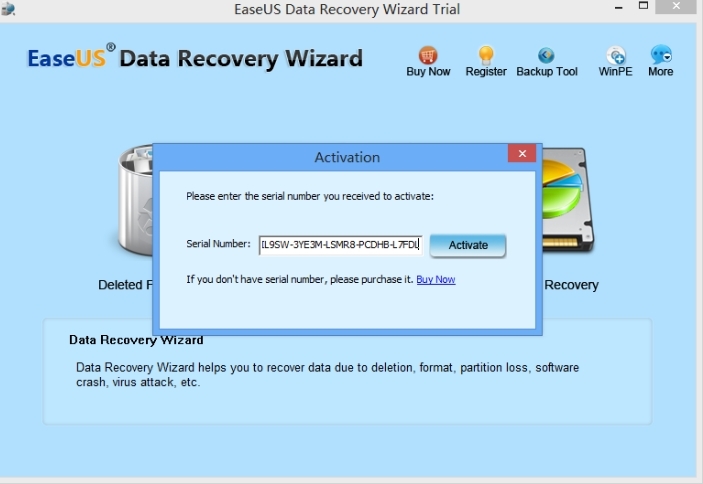
Even if these cracks work they would not guarantee you get the lost data and moreover, the chances of getting the data permanently corrupted and having issues with the system are quite high. So, using EaseUS Data Recovery with a crack is not an advisable solution, and instead, we recommend an alternative tool called Eassiy Data Recovery that is high on features and friendly on the pocket.
Step-by-Step Tutorial: How to Recover Files with EaseUS Data Recovery
EaseUS Data Recovery Wizard makes file recovery straightforward, but if you rush through the final saving phase, you can permanently overwrite the exact data you are trying to rescue. Don't rush. Follow these four practical steps to scan your drive cleanly and retrieve your lost files without causing collateral damage.
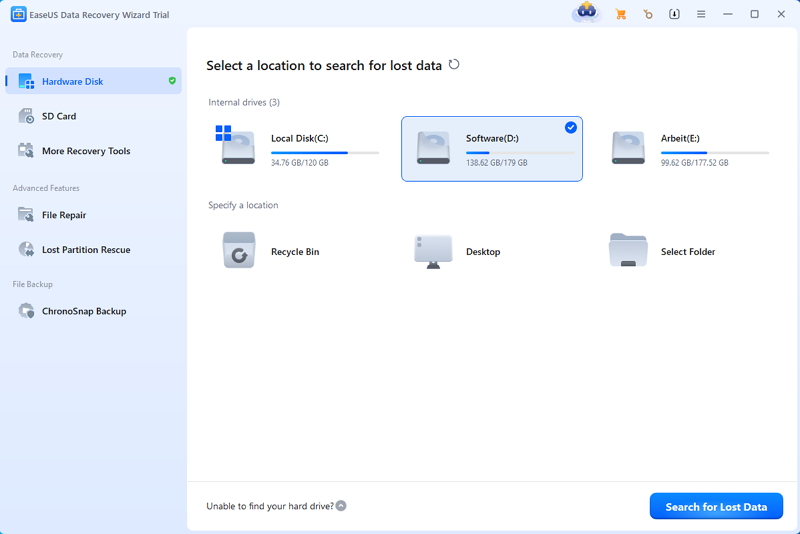
Step 1: Select the Target Location
Fire up the app. The main dashboard displays every storage medium attached to your system, including internal hard drives, formatted SD cards, external HDDs, and plugged-in USB flash drives.
Hover over the precise volume, raw partition, or directory where your files vanished, such as an attached SanDisk 64GB USB or your D:\Work folder, and hit Scan.
Don't guess. Selecting the wrong partition forces the software to waste hours scanning empty sectors while your missing data sits untouched elsewhere.
Step 2: Let the Scan Run
Click auf "Search for Lost Data" to start the scan . It reads raw sectors byte by byte, which takes time on a standard 1TB Western Digital external HDD connected via USB 3.0, expect the deep scan to take roughly 1 hour and 45 minutes to complete. You can pause or stop early if your target file shows up in the preliminary list, though letting the scanner finish gives you the highest success rate on reformatted drives.
Step 3: Filter, Search, and Preview Target Files
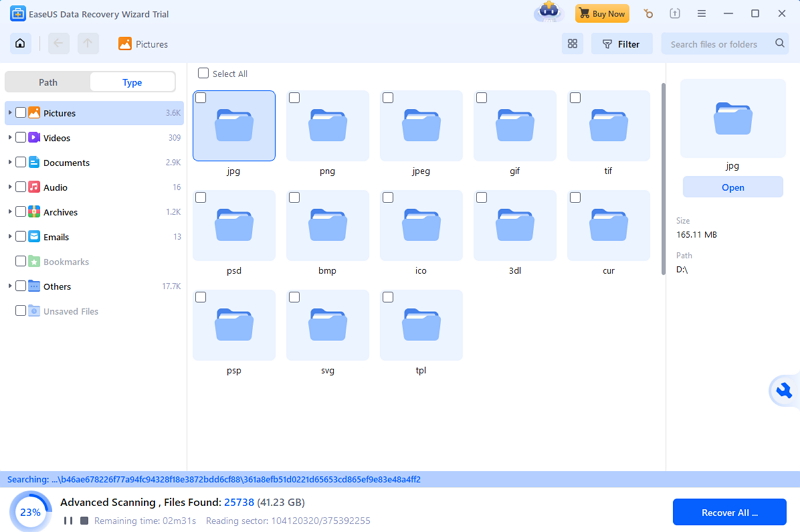
Sorting through tens of thousands of recovered items is exhausting. Use the left panel menu to filter results by file type such as Documents, Pictures, or Videos, or type the exact extension directly into the search bar if you already know it (like .docx or .psd).
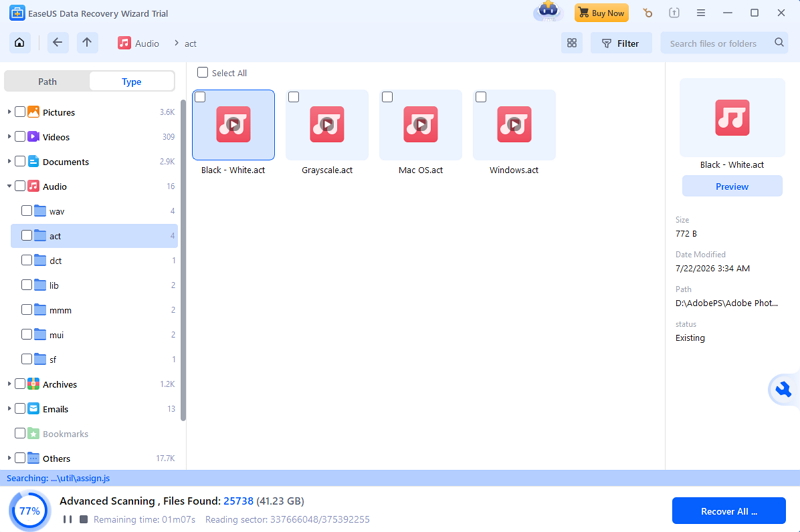
Always double-click to preview files before recovering them. The software offers full previews for text documents, images, and PDFs under 25MB. If the preview shows distorted characters or a blank gray box, that file header is corrupted beyond repair and cannot be salvaged. Previews save time.
Step 4: Recover and Save Data to a Safe Drive
Tick the checkboxes next to your target files and click the blue Recover button in the lower-right corner. A dialog box will prompt you for a save destination.
Never save recovered files back to the same drive you are currently scanning.
Writing new data onto a damaged drive immediately overwrites the unallocated sectors you are actively trying to restore, permanently destroying files in the process. I've personally seen users destroy an entire 100GB batch of recoverable files by saving them straight back onto the source C:\ drive instead of selecting a completely separate physical volume like an external backup drive or a secondary internal E:\ drive.
Best Alternative to EaseUS Data Recovery Wizard
EaseUS handles major partition rebuilds well. That said, dropping serious money on an annual subscription hurts when you only need to rescue six or seven accidentally deleted vacation photos from a thumb drive. It just feels unreasonable. If you want flexible pricing and broad file format support without committing to a full year, Eassiy Data Recovery is the sensible alternative worth looking into.
Compatibility spans from Windows 11 all the way back to Windows 7, alongside native support for macOS. The tool targets over 1,000 file formats across 2,000 device types, matching EaseUS on everyday recovery jobs like formatted drives, malware wipes, and corrupt RAW partitions. It moves fast, too. During my testing on a formatted 64GB SanDisk Extreme SD card, the quick scan wrapped up in under 45 seconds.
For standard consumer hardware like recovering lost media from external SSDs, micro SD cards, or USB drives, it gets the job done without overcharging you.
Steps for data recovery using Eassiy Data Recovery tool
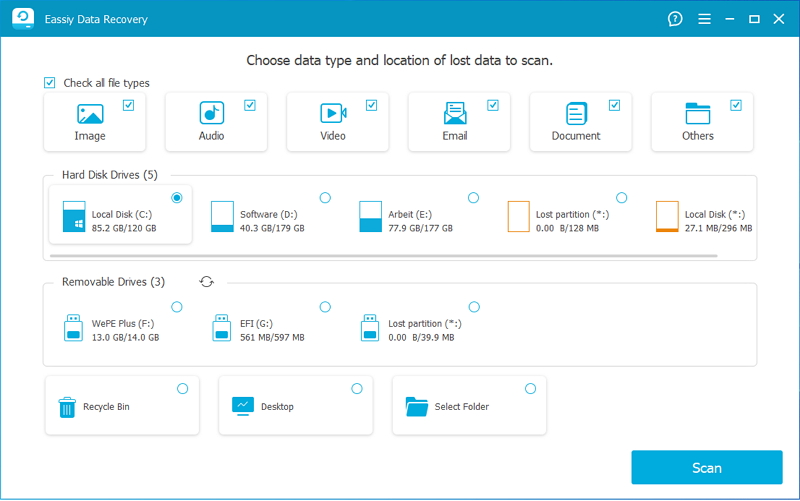
Open the app on your desktop, and on the main interface choose the drive from which you wish to recover the data. Here also check the boxes next to the file types that you want to recover.
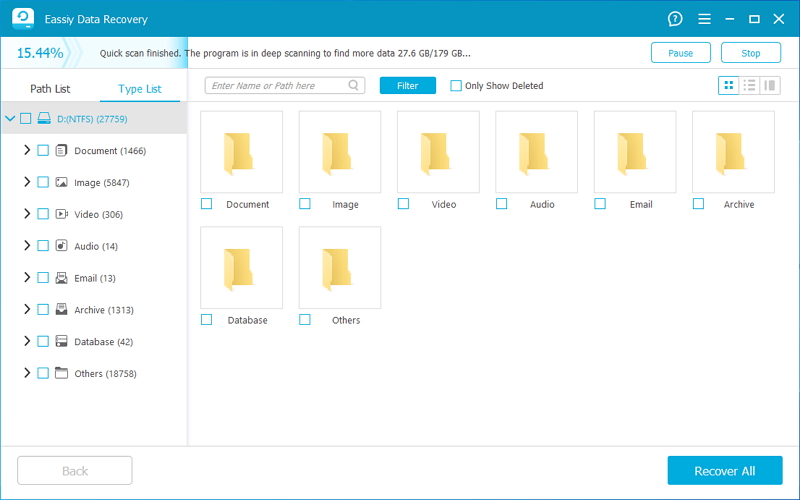
Hit Scan. The quick scan kicks off immediately. When it finishes, navigate through your recoverable files using the directory tree or file extension filters on the left panel.
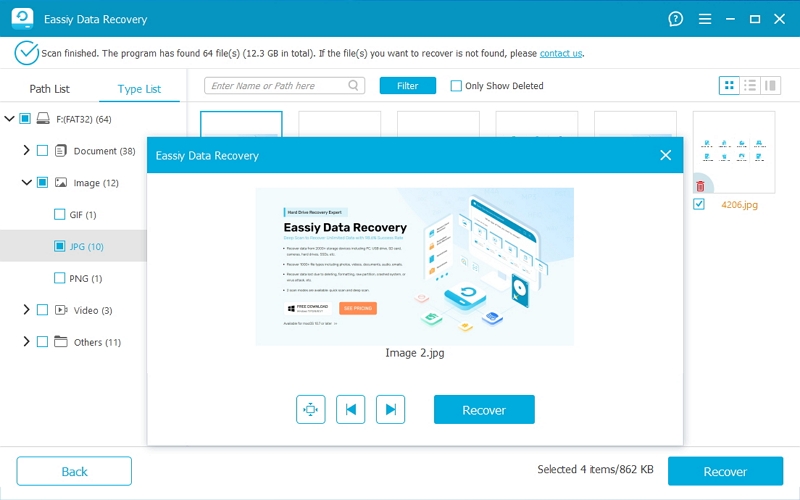
Next, look out for the desired files and preview them using the preview mode. The search bar can also be used for locating the desired files. Click on the Recover button to recover the lost files at the desired location on your system.
Note: If the quick scan is unable to recover the desired files, use deep scan ( the mode might take some time for scanning and recovering the files).
Conclusion
Data loss hits everyone eventually. If you only lost a handful of photos or documents under 2GB, EaseUS Data Recovery Wizard Free costs nothing and handles everyday file deletion or minor partition glitches without any fuss. Drive crashed completely? Paying $69.95 every month for EaseUS Pro is way too steep for a one-off rescue.
Check your budget first. If you need deep scanning on corrupted storage without enterprise price tags, Eassiy Data Recovery is a far cheaper alternative. Lost more than 2GB? Always test the file preview in both tools before dropping money on a paid plan.